Scanning a QR code should take seconds, not minutes of searching through menus or downloading apps you'll never use again. Whether you're accessing a restaurant menu, connecting to WiFi, or redeeming a discount code, knowing the fastest method for your device saves time and frustration.
This guide covers every practical way to scan QR codes on Android phones and Windows PCs, from built-in camera features to browser-based tools that work across devices.
Understanding QR Code Scanning Methods
Before diving into specific instructions, it helps to understand the three main approaches to scanning QR codes:
Native device features use your phone's camera or built-in tools without additional software. These work offline and integrate directly with your operating system, making them the fastest option when available.

Third-party apps offer specialized features like scan history, batch processing, or enhanced security checks. They require installation and camera permissions but can provide more control over how scanned data is handled.
Browser-based tools run directly in your web browser without installation. They're particularly useful when working on desktop computers or when you need to scan QR codes that appear on your own device screen.
Each method has specific use cases where it excels. The key is choosing the right approach for your situation.
Scanning QR Codes on Android Devices
Android's widespread adoption and varying manufacturer implementations mean multiple scanning options exist, depending on your device and Android version.
Using Android's Built-In QR Scanner
Modern Android devices running version 9 or higher include native QR code scanning, though the exact method varies by manufacturer.
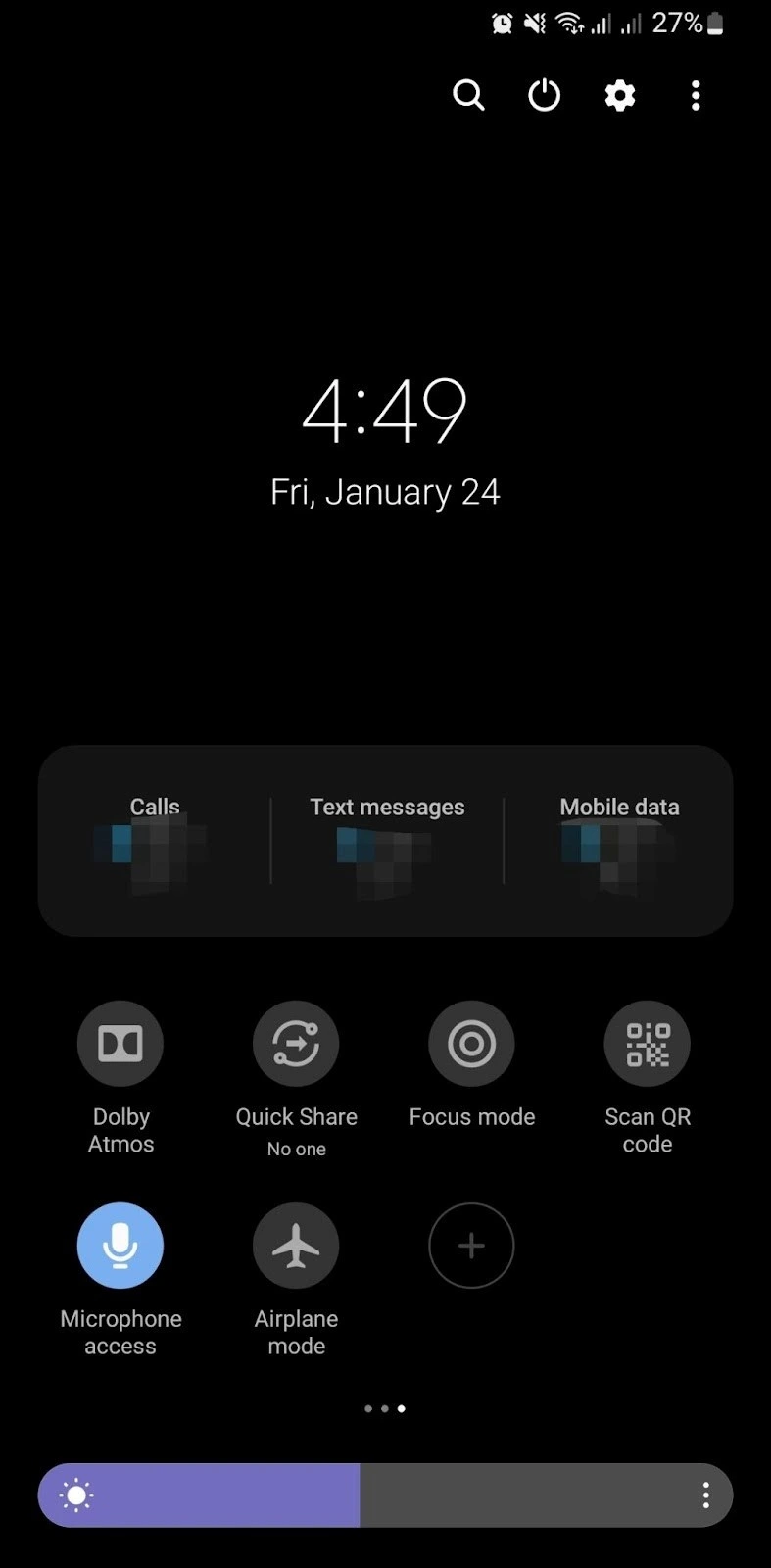
Quick Settings Method: Swipe down from the top of your screen to access Quick Settings. Look for a tile labeled "Scan QR code" or similar. If you don't see it immediately, swipe left to view additional tiles. Some devices hide this feature in the "+" or edit menu, where you can add it to your main Quick Settings panel.
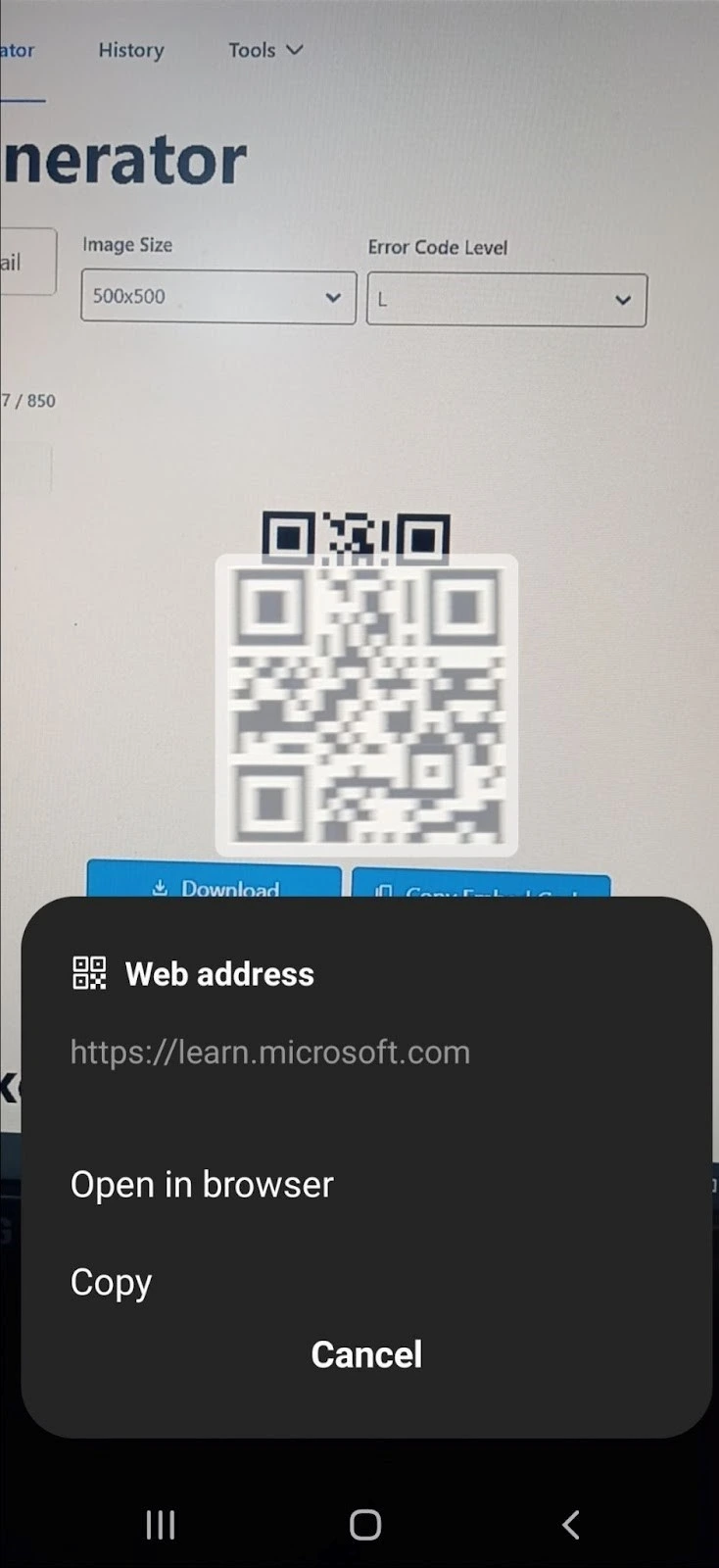
Once activated, the camera launches in scanning mode. Position the QR code within the viewfinder, and your phone automatically detects and processes it. No button press is required—the system recognizes the code pattern and triggers the appropriate action.
Google Lens Integration: Many Android devices integrate Google Lens directly into the camera app. Open your camera, then look for the Lens icon (typically a small square or circle near the shutter button). Tap it, point at the QR code, and Lens identifies and processes it instantly.
This method works particularly well for QR codes in challenging lighting conditions, as Lens uses advanced image recognition beyond simple pattern detection.
Camera App Direct Scanning: Some manufacturers, including Samsung and Google's Pixel line, enable QR scanning directly in the default camera app. Simply open the camera and point it at a QR code. A notification banner appears with the scanned content, allowing you to tap and take action.
Check your camera app's settings if this doesn't work automatically—there's often a toggle to enable QR code detection.
When Built-In Options Fall Short
Older Android devices or those running versions below Android 9 may lack native QR scanning. Additionally, some situations require scanning codes displayed on your own phone screen, which camera-based methods can't handle.
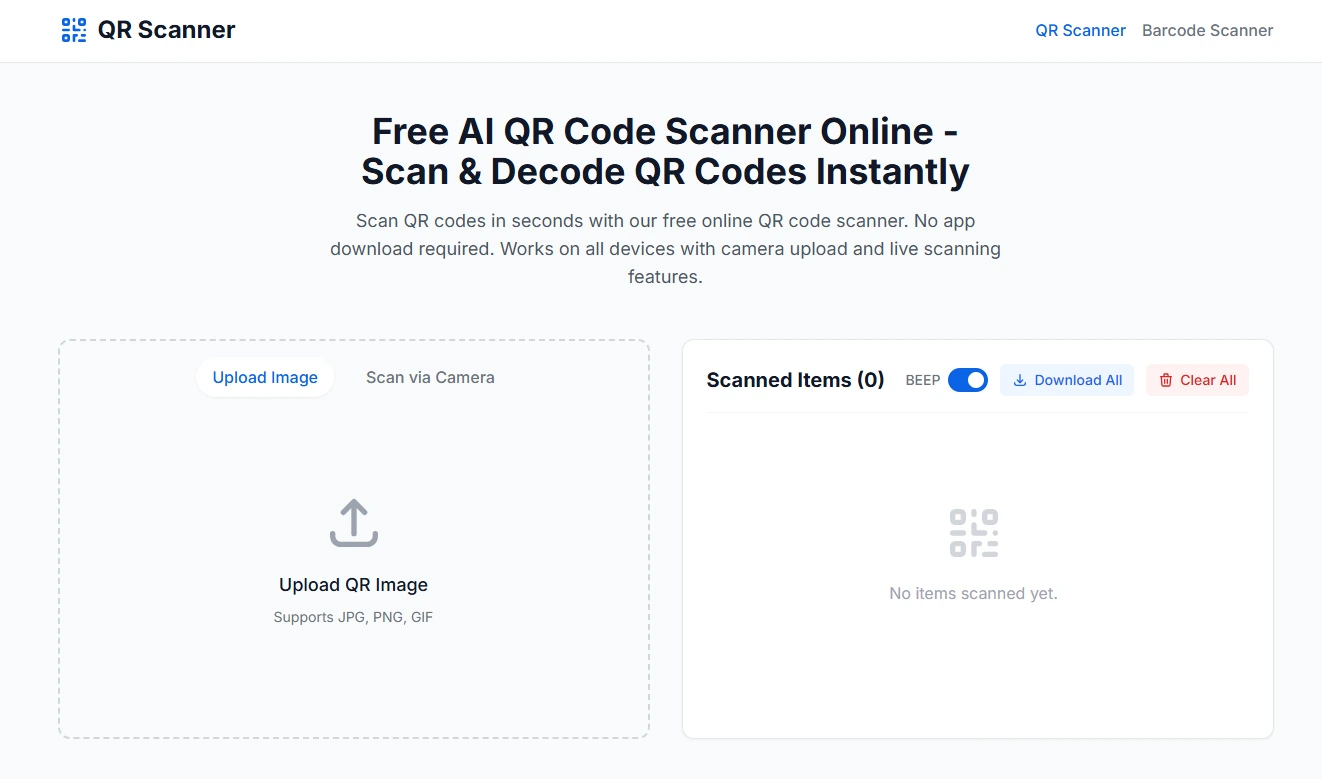
Browser-Based Scanning for Desktop-to-Mobile Workflows: When working across devices, browser tools eliminate the need for app installations. For instance, qrscannerai.com allows you to upload an image file containing a QR code, making it useful when someone sends you a screenshot or when you need to scan a code displayed on your computer monitor.
This approach works on any device with a browser and is particularly helpful in office environments where app installation may be restricted.
Google Lens as a Universal Solution: If your device lacks built-in scanning, install the standalone Google Lens app from the Play Store. It provides consistent functionality across Android versions and includes additional features like text extraction and translation from scanned images.
The app requires a one-time download but offers reliable scanning without manufacturer-specific variations.
Quick Tip: Testing WiFi QR Codes
When scanning WiFi QR codes in public spaces, your Android device should automatically prompt to connect. If nothing happens, the code may be improperly formatted or the network may have changed. Always verify you're connected to the intended network after scanning, especially in high-traffic areas where malicious codes could redirect you elsewhere.
Scanning QR Codes on Windows PCs
Desktop scanning presents unique challenges—most QR codes are designed for mobile devices, but you'll frequently encounter them while browsing websites or working at your computer.
Using the Windows Camera App
Windows 10 and 11 include a Camera app with basic QR code detection capabilities, though it's less intuitive than mobile solutions.
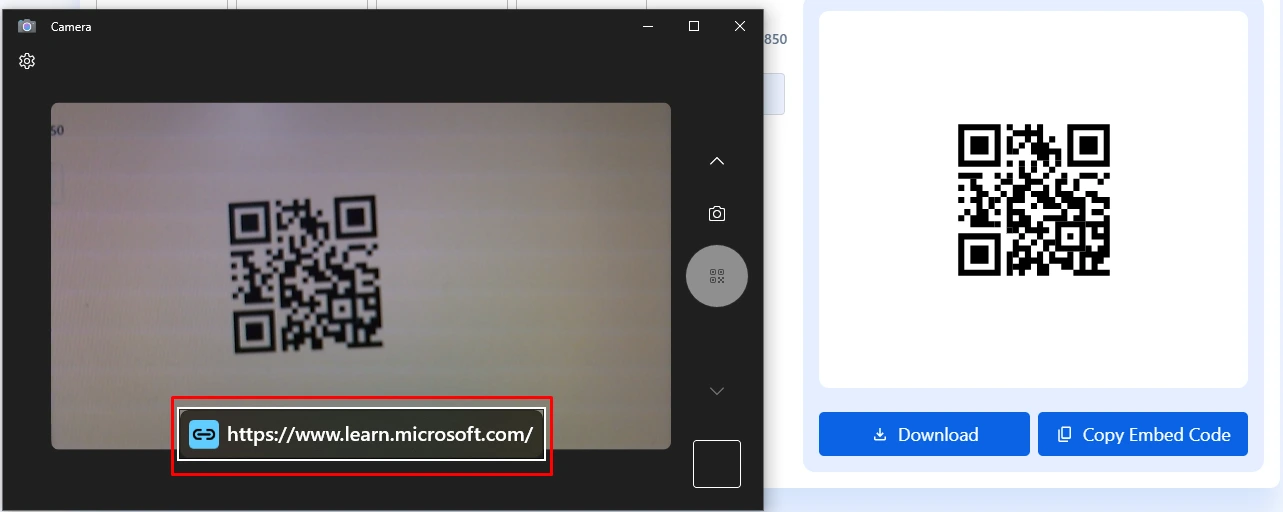
Laptop Webcam Scanning: Press the Windows key, type "Camera," and open the app. If your laptop has a built-in webcam, it activates automatically. Look for a QR code icon in the app interface (usually in the bottom-right corner). Click it to enable scanning mode, then hold the physical QR code in front of your webcam.
The app detects the code and displays a clickable link or text content. This method works for physical codes like those on product packaging or event badges but won't help with codes displayed on your screen.
External Webcam Considerations: Desktop PCs require an external webcam for this method. Ensure your webcam is properly connected and recognized by Windows. You may need to grant camera permissions the first time you launch the app.
Poor webcam quality can affect scan reliability—codes must be clearly visible and properly lit. If the Camera app struggles, adjusting room lighting or moving closer often resolves detection issues.
Browser-Based QR Scanning for Desktop
Most desktop QR code scanning situations involve codes displayed on your own screen—product pages, email confirmations, or digital tickets. Camera-based methods can't scan your own monitor, making browser tools essential for desktop workflows.
Screenshot and Upload Method: Use Windows' Snipping Tool (Win + Shift + S) to capture the QR code area. Save the screenshot, then open a browser-based scanner that accepts image uploads. Tools like qrscannerai.com process the uploaded image and extract the embedded information, allowing you to copy URLs or access content without reaching for your phone.
This approach is particularly efficient when researching products online, comparing prices across sites, or handling customer support scenarios where QR codes are embedded in troubleshooting documents.
When to Use Desktop Scanning: Browser-based tools excel in situations where switching to your phone interrupts workflow. If you're writing a report and need to verify a QR-linked source, or processing multiple codes for data entry, staying on your computer maintains productivity.
They're also useful when your phone isn't available or when you need to scan codes repeatedly—browser tools often maintain scan history, unlike camera apps that process and discard each scan.
Microsoft Store QR Scanner Apps
The Microsoft Store offers dedicated QR scanner apps that integrate with Windows more seamlessly than browser tools. Apps like "QR Code Scanner" or "Quick Scan" provide features such as:
- Webcam scanning with enhanced image processing
- Scan history for reference
- Bulk scanning capabilities
- Export options for scanned data
Installation takes a few minutes, but these apps can be worthwhile if you scan QR codes frequently. They typically offer better performance than the basic Camera app and include features that browser tools don't provide.
However, for occasional use, browser-based tools remain more practical—they require no installation, work across all your devices, and don't consume storage space.
Choosing the Right Method for Your Situation
The "best" QR scanning method depends entirely on your specific circumstances. Here's how to decide:
For quick scans on modern smartphones: Use your phone's native camera or Quick Settings scanner. It's the fastest option and works offline.
For older Android devices: Install Google Lens once for consistent, reliable scanning across all apps and situations.
For codes on your own device screen: Use a browser-based tool or share the code to another device. Camera-based methods physically cannot scan your own display.
For desktop workflows: Browser tools like qrscannerai.com maintain productivity by eliminating the need to switch devices. Take a screenshot and upload rather than interrupting your work to grab your phone.
For bulk processing or frequent scanning: Consider installing a dedicated app that maintains history and offers data export features.
For maximum privacy: Native device scanners process everything locally. Third-party tools may transmit scanned data to servers, though reputable services process data securely.
Quick Tip: Security Best Practices
Before scanning any QR code, consider where it appeared. Codes in reputable establishments or on official product packaging are generally safe. Be cautious with codes on random stickers in public places, unsolicited emails, or unusual locations—they could redirect to phishing sites or trigger unwanted downloads. Most modern scanners preview the destination before taking action, giving you a chance to cancel if something looks suspicious.
Alternative QR Code Scanning Tools
Beyond the primary methods covered above, several alternatives address specific use cases.
Google Lens Photo Library Scanning: If you receive a QR code via text message or email, save the image and open it in Google Photos. Tap the Lens icon, and it scans the code from the saved image. This works for codes shared across messaging apps without needing to display them on another device.
Snapchat Camera: Snapchat's camera automatically detects QR codes (including Snapcodes and standard QR codes). It's not a dedicated scanner, but it works if you already have the app installed and want a quick option without navigating to other tools.
Messaging App Integrations: WeChat, Line, and other messaging apps include built-in QR scanners for adding contacts or joining groups. While designed for their ecosystems, they can scan standard QR codes too.
Browser Extensions: Chrome and Edge extensions can scan QR codes from webpage screenshots. These work well for frequent desktop scanning but require permission to access your camera and may not be as privacy-focused as native tools.

Troubleshooting Common Scanning Issues
Even with the right tools, QR code scanning occasionally fails. Here's how to resolve common problems:
Code won't scan or takes too long: Ensure adequate lighting and hold your device steady. Blurry images prevent detection. Clean your camera lens if the issue persists.
Scanned link doesn't open: Some codes contain plain text rather than URLs. Your scanner should display the content, but it won't automatically open a browser if there's no link.
Wrong action triggered: QR codes can contain various data types—URLs, WiFi credentials, calendar events, or plain text. If scanning triggers an unexpected action, the code is formatted differently than you anticipated.
"Unsupported format" error: Damaged or poorly generated QR codes may lack the proper structure. If the code is on a physical object, check for smudges or tears. Digital codes might be corrupt or improperly generated.
Privacy concerns after scanning: If you accidentally scanned a suspicious code, check your browser history for the destination URL. Consider running a security scan and change passwords if you provided credentials on an unexpected site.
Most scanning issues stem from code quality, lighting conditions, or using the wrong method for your situation. Matching the scanning approach to your specific scenario resolves the majority of problems.
Key Takeaways
- Android users should prioritize native tools: Quick Settings or Google Lens provide the fastest scanning experience on modern devices
- Desktop workflows benefit from browser-based tools: Screenshot and upload to avoid device switching when codes appear on your screen
- Windows Camera app works for physical codes: Requires a webcam and adequate lighting for reliable detection
- One-time installations solve recurring needs: Google Lens or Microsoft Store apps work well if you scan frequently
- Security matters: Preview destinations before taking action, especially with codes from unknown sources
- Different methods for different situations: Match your approach to whether you're scanning physical or digital codes
Frequently Asked Questions
Can I scan a QR code from a picture on my phone?
Yes. Save the image, then open it in Google Photos and tap the Google Lens icon. Alternatively, use a browser-based scanner that accepts image uploads, which works across any device without requiring specific apps.
Do I need an app to scan QR codes on Android?
Not on modern devices. Android 9 and higher include native scanning through Quick Settings or the camera app. Older versions may require Google Lens or a third-party tool.
Why won't my Windows PC camera scan QR codes?
The Windows Camera app includes QR scanning, but you must activate it by clicking the QR code icon in the app. Poor webcam quality or inadequate lighting can also prevent detection—ensure the code is clearly visible and well-lit.
Are online QR scanners safe to use?
Reputable browser-based scanners process codes securely without storing your data. However, the QR code itself might link to malicious content. Always preview the destination before clicking through, regardless of which scanning method you use.
Can I scan QR codes without internet?
Yes, if using native device cameras or installed apps. These process codes locally. Browser-based tools require an internet connection to function but are useful when camera-based methods aren't practical.
Conclusion
Scanning QR codes efficiently means choosing the right tool for each situation. While phones offer the most convenient mobile scanning, browser-based solutions like qrscannerai.com bridge the gap for desktop users who need to process codes without reaching for another device. Understanding your options ensures you can access QR code content quickly, regardless of which device you're using.