
QR codes are used everywhere—opening websites, making payments, logging in, sharing files, or accessing menus. While scanning on a phone is usually easy, many users still struggle when they need to scan a QR code on a computer or from an image.
This guide explains clear, real-world ways to scan QR codes across devices, with practical tips to help you choose the right method for each situation.
How QR Code Scanning Actually Works
A QR code stores data in a visual pattern that a camera and decoding software can read. Once scanned, the data is converted into something usable, such as:
Because QR codes often contain direct links, knowing how and where you scan them matters, especially for security.
The Easiest Way to Scan QR Codes on a Smartphone
For most people, phones are the primary QR scanning device.
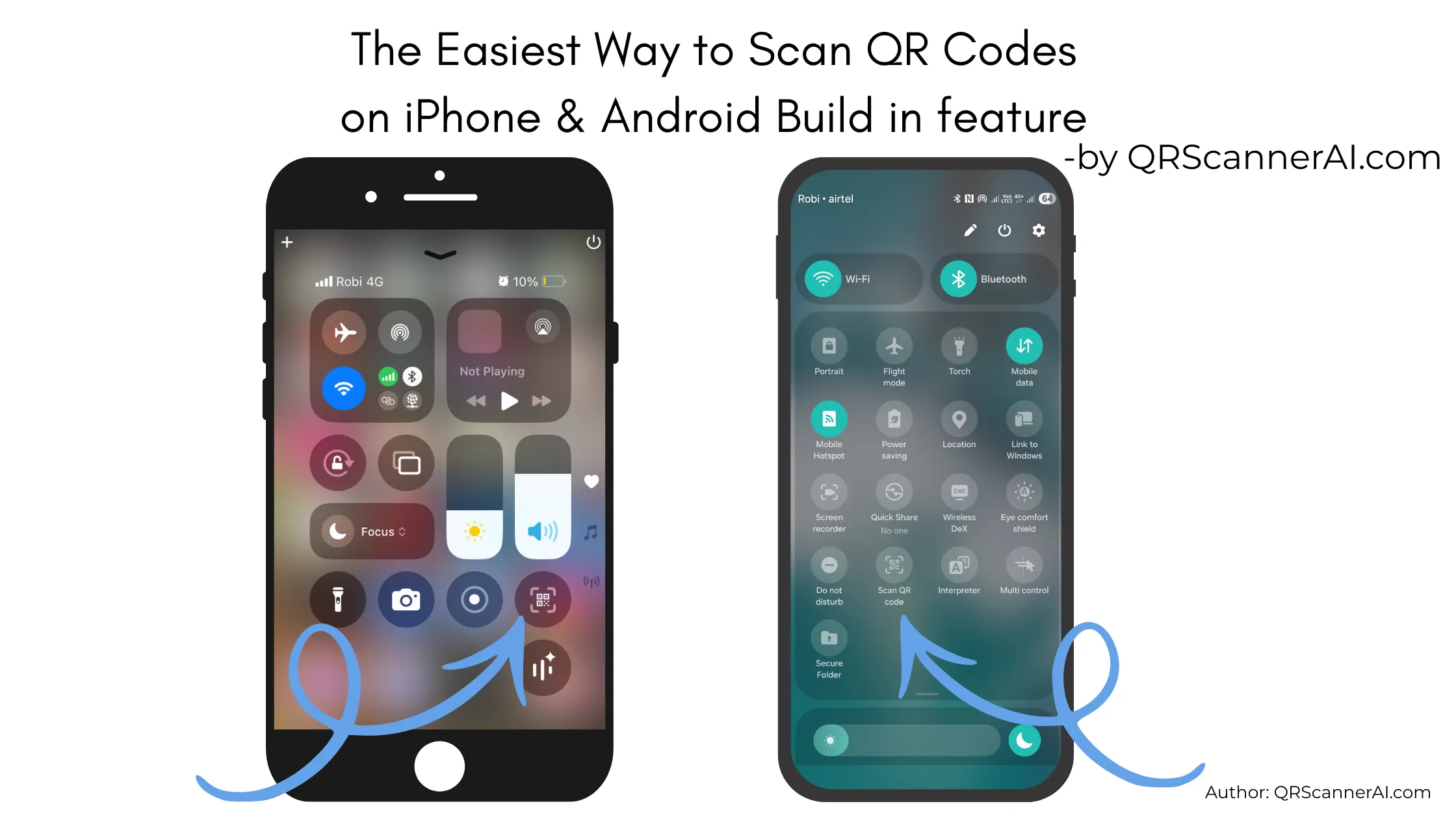
Built-in Camera (iOS & Android)
No extra apps are required on modern phones.
Best for:
✔ Menus, posters, flyers, payments
✔ Quick, everyday scanning
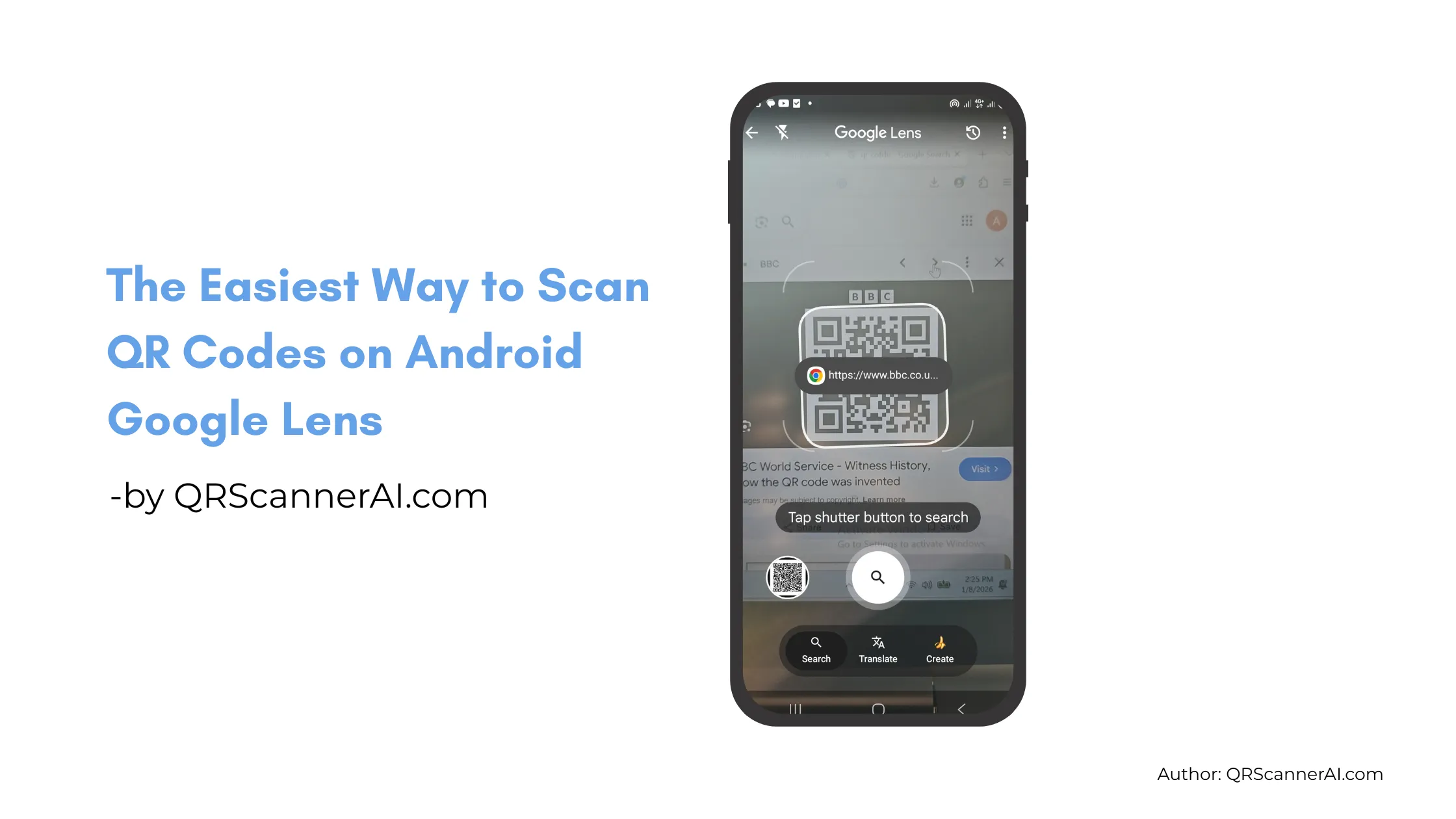
Google Lens
Best for:
✔ Scanning QR codes from images
✔ Combined search and translation tasks
How to Scan QR Codes on a PC or Laptop
Desktop computers usually don’t have built-in QR scanners. This is where web-based QR scanning tools become useful.
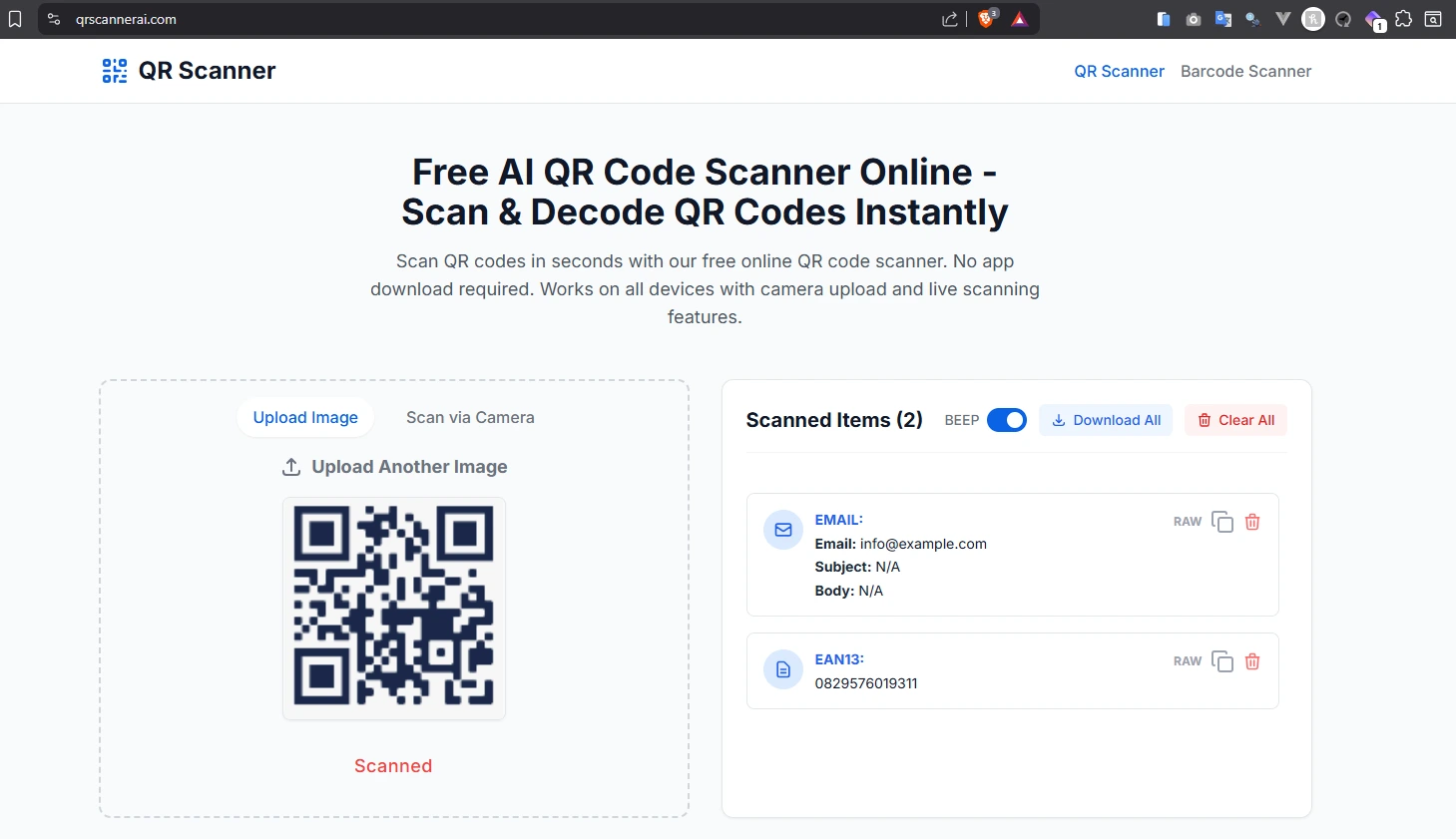
Browser-Based QR Scanners
These tools work directly in your browser and typically support:
A practical option is using a browser-based tool like https://qrscannerai.com, which allows users to scan QR codes directly from their desktop using a webcam or uploaded images. This can be especially helpful when working with QR codes embedded in documents, emails, or design files.
Best for:
✔ Office or remote work
✔ Scanning QR codes from files
✔ Environments where app installation is restricted
When Offline QR Scanner Apps Make Sense
Some users prefer dedicated offline apps.
Pros
- Works without internet
- Fast for repeated scanning
- Useful in fieldwork environments
Cons
- Requires installation
- May request broad permissions
- Less practical on desktop devices
Best for:
✔ Warehouses or on-site operations
✔ Low-connectivity areas
Security and Privacy Tips When Scanning QR Codes
QR codes themselves are neutral, but what they link to may not be.
Always check:
When using web tools, it’s also worth checking whether uploaded images are stored or processed only temporarily.
Quick Tips for Everyday Use
- Phone cameras handle most cases
- Google Lens works well with images
- PCs need browser-based scanners
- Offline apps fit special environments
- Security checks are always important
- Installation-free tools improve flexibility
- Use phone cameras for physical QR codes
- Use web tools for desktop workflows
- Upload images when QR codes aren’t clickable
- Avoid scanning unknown QR codes
- The preview URL before opening
- Shortened links from unknown sources
- Login or payment requests
- Requires installation
- May request broad permissions
- Less practical on desktop devices
- Works without internet
- Fast for repeated scanning
- Useful in fieldwork environments
- Webcam scanning
- Image upload (PNG, JPG, PDF)
- No installation required
- Works with live camera or saved images
- Can scan QR codes inside screenshots or photos
- Useful when the QR code is not physically present
- Open the camera
- Point it at the QR code
- Tap the on-screen link
- A website URL
- Text or messages
- Email or phone details
- Wi-Fi credentials
- Login or payment tokens
Frequently Asked Questions (FAQ)
Can I scan a QR code on my computer?
Yes. While PCs don’t have built-in scanners, browser-based tools allow scanning via webcam or image upload.
Can QR codes be scanned from images or PDFs?
Yes. Tools like Google Lens or web-based scanners can read QR codes from image files and documents.
Are QR codes safe to scan?
The code itself is safe, but the destination may not be. Always review the link before opening it.
Do I need to install an app to scan QR codes?
Not always. Modern phones scan QR codes natively, and desktop users can rely on browser-based tools such as qrscannerai.com without installing anything.
A Practical Note
If you regularly work on a computer and need to scan QR codes from files, emails, or designs, keeping a reliable web-based scanner in your workflow can save time. Tools like qrscannerai.com are often convenient in those situations, especially when flexibility and accessibility matter.