
QR codes are now very common. We use them to share WiFi details, websites, files, discounts, and many other types of useful information. You can see QR codes in restaurants, hotels, and even on websites. However, many people still don’t know how to scan a QR code. In this guide, we will explain in simple language how to scan QR codes on Android phones and Windows PCs.
How to Scan A QR Code on Android
The Android operating system is one of the most widely used platforms for scanning QR codes. Android OS works on mobile devices such as smartphones and tablets.
There are several ways to scan QR codes on Android. Let’s take a look at them.
With Built-in Options
You can scan a QR code on any Android device without installing an app or using an online tool. This is possible because all modern Android devices (running Android version 10 or later) come with a built-in QR code scanner.
Here’s how you can use the built-in QR code scanner:
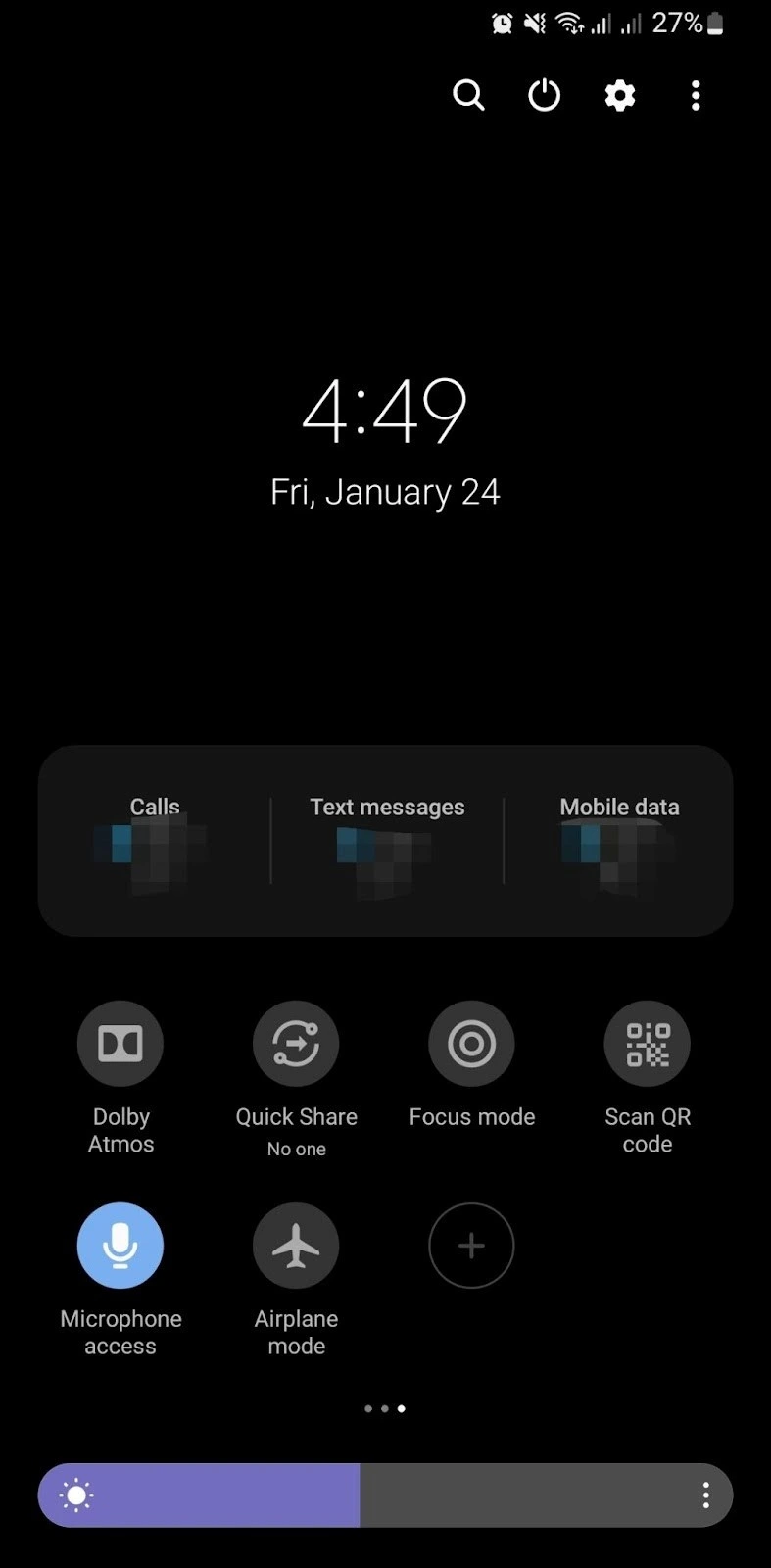
- Swipe down from the top of your screen to open the quick settings menu.
- Swipe left to move through the menu and look for the “Scan QR Code” option.
- If you don’t see it, tap the “+” or edit button to open more options. Find “Scan QR Code” and add it to your quick settings menu.
- Once you tap “Scan QR Code,” your phone’s camera will open. Point the camera at the QR code you want to scan, and it will scan automatically.
- After you scan the QR code, it will perform the action it was designed for—such as opening a website or sharing a WiFi password.
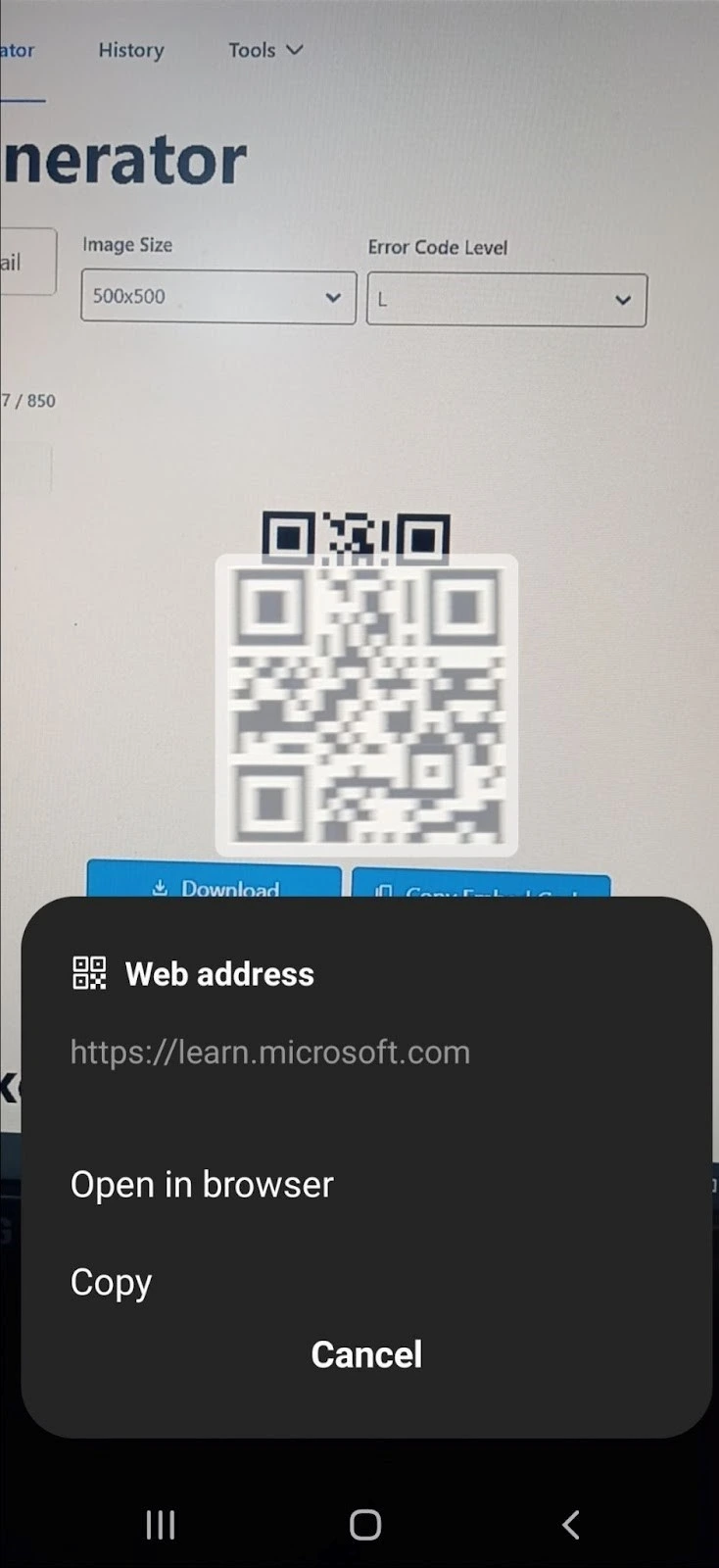
So, it’s simple and easy to use.
Using a Third-Party App or Tool
If you are using an older version of Android that doesn’t include a built-in QR code scanner, you can use a third-party app instead. Most third-party tools are free and don’t require any long-term commitment—you can use them once and uninstall them if you like.
Here’s how you can use these tools:
- Open a browser on your Android device.
- Search for "QR scanner"
- You’ll find many tools in the search results. You can pick any from the top 10 without worrying too much. Alternatively, you can directly go to https://qrscannerai.com in your browser.
- No matter which tool you choose, you’ll see a screen where you can enter your QR code. Simply copy and paste the code into the tool’s input area to scan it.
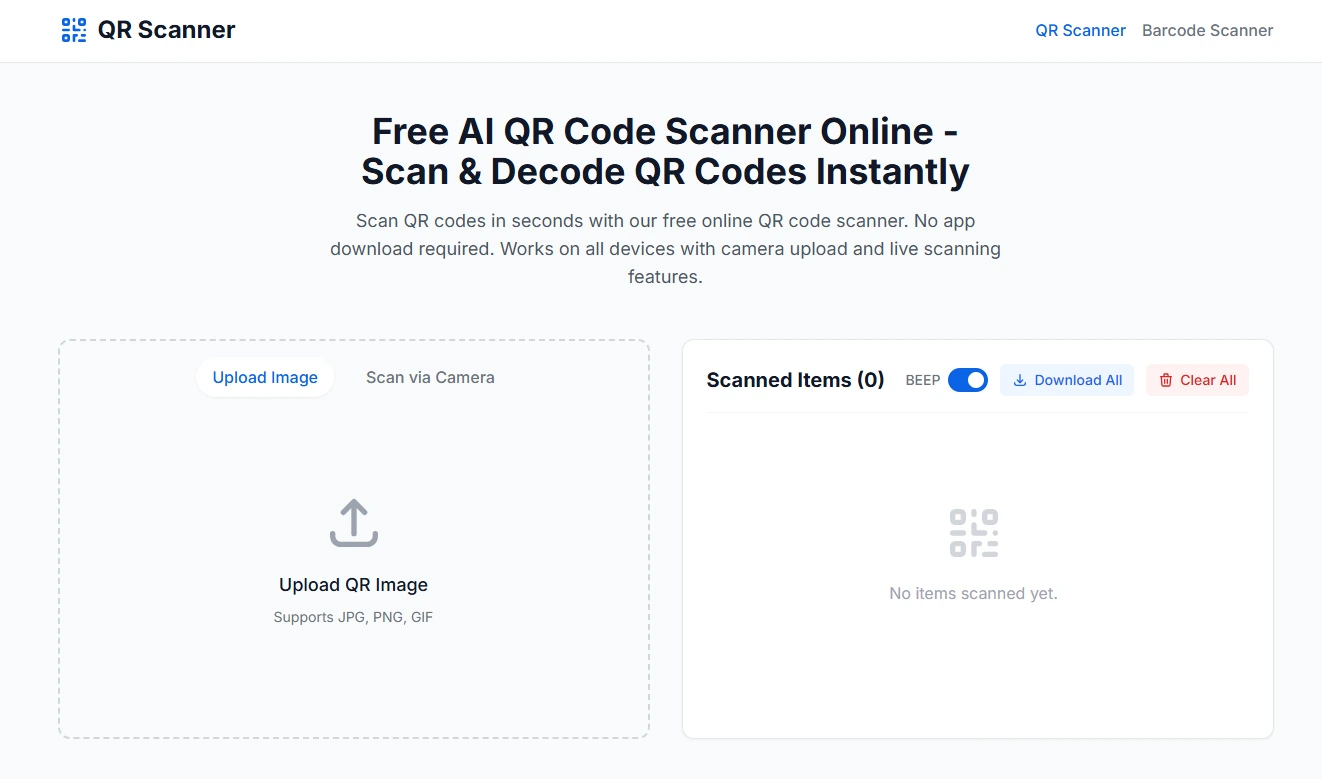
- If you prefer to scan a code using your smartphone camera, some tools offer that option as well.
- Once you enter the QR code, the tool will automatically read it and display the information or perform the action it’s programmed for.
And that’s how you scan a QR code using an online tool. To do the same with an app, follow the same steps but instead of opening a browser, go to the Google Play Store. Install the app and allow it to access your camera. Other than that, the process works in the same way.
How to Scan a QR Code on a PC
To scan a QR code on a Microsoft Windows PC, you can use apps or online tools for digital QR codes, or a camera to scan physical QR codes.
Keep in mind: If your PC doesn’t have a built-in webcam, you will need to connect an external one.
Scanning QR Codes Without a Third-Party App or Tool
To scan a QR code on a Microsoft Windows PC without using an app or tool, you need a camera. On laptops, the built-in webcam on the screen works perfectly.
Once your camera is connected and ready, follow these steps:
- Open the Start menu by clicking the Windows icon or pressing the Windows key on your keyboard.
- Search for the Camera app and open it.
- Click on the QR code icon within the app.
- Point your camera at the QR code to scan it.
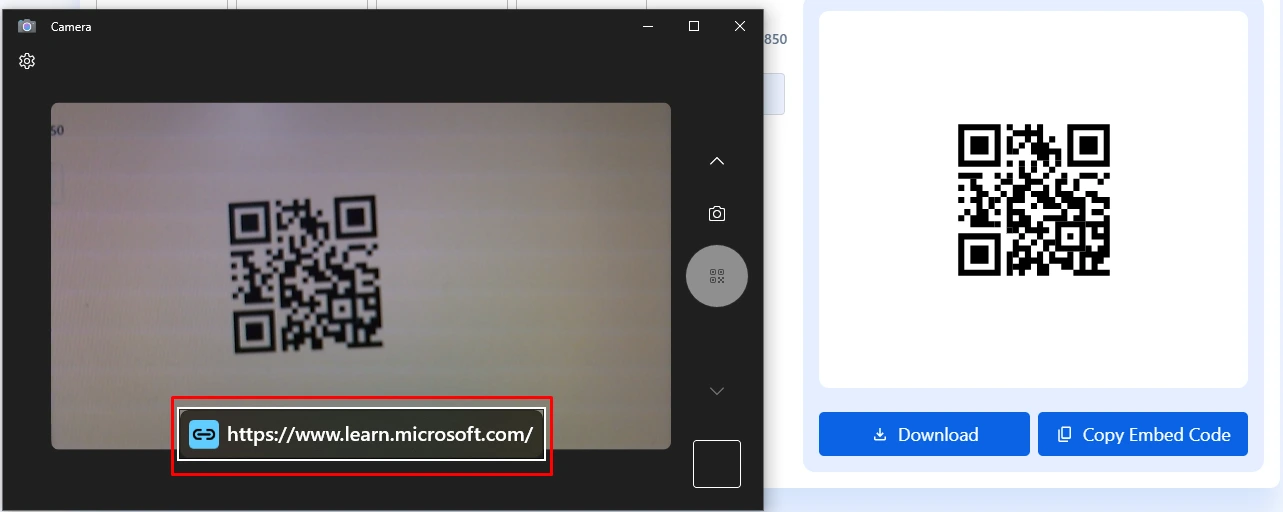
And that’s it! The camera will scan the QR code and either open the URL or display the information it contains.
Using a Third-Party App or Tool
To scan a QR code using an app or online tool, you need an active internet connection. Once that’s ready, follow these steps:
- Search for "QR Code Scanner".
- Choose a free app from the results.
- Alternatively, open your browser, search for an online QR code scanner, and pick a free tool.
- Open the Windows App Store on your PC.
- In the app or tool interface, copy and paste your QR code.
- The app or tool will scan the code and perform the action or display the information it contains.
That’s all you need to do to scan a QR code on a Windows PC using a third-party app or tool.
Conclusion
Scanning QR codes is an easy process that works on both Android devices and Windows PCs, using either built-in features or third-party apps and tools. Knowing how to scan QR codes helps users quickly access information, discounts, and other digital content.